1. Navigating the Compliance Management Module
- Go to the Compliance Management Module from the left-hand menu.
- Click on the "Policies" tab to manage, create, and define your company’s policies.
- The Policies Table displays all existing policies in the system.
- Use filters to search for policies based on:
- Policy Name
- Status (Draft, Published, Expired)
- Mapped Standard (e.g., ISO 27001, NIST)

2. Adding a New Policy
There are three ways to add a policy in GRCHub:
2.1 Upload Policy (Bulk Import)
- Click "Upload Policies" at the top-right corner of the screen.
- Bulk import multiple policies into the system at once.
- Ideal for organizations migrating existing policies into GRCHub.
2.2 Manually Create a Policy
- Click "Add Policy" at the top-right.
- Enter the following details:
- Policy Name
- Description
- Effective Date
- Expiry Date
- Policy Owner (responsible for maintaining the policy)
- Click "Save" to add the policy to the system.
2.3 Using the AI Virtual Assistant
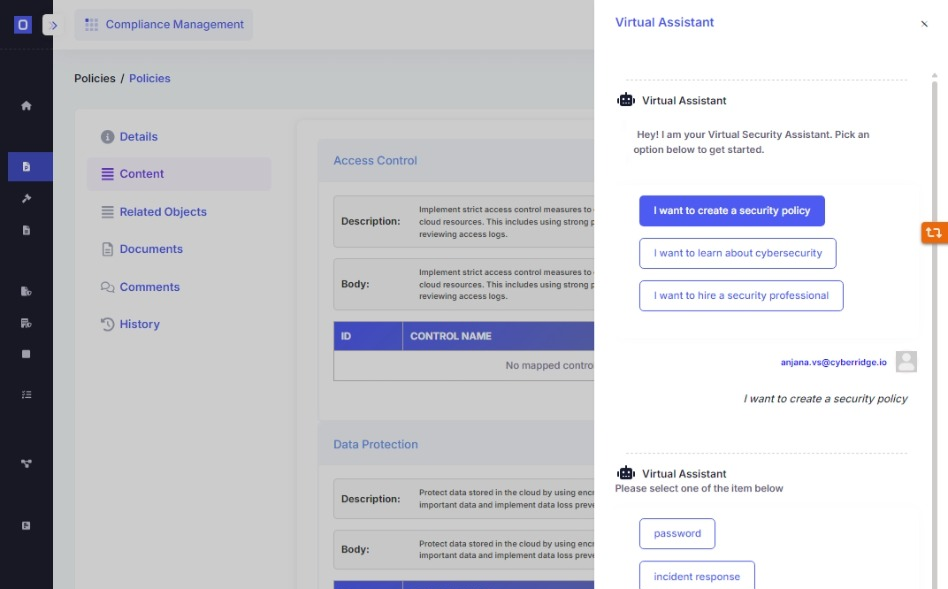
- Click on the Virtual Assistant option.
- Select "I want to create a security policy."
- Choose the security category from the available options (e.g., Access Control, Network Security, Incident Response).
- Select the level of description (Basic or Comprehensive).
- The AI will generate a new security policy based on industry best practices.
- Users can:
- Review the generated policy.
- Accept and save it.
- Regenerate for a different version.
- Once accepted, the policy is automatically populated in the system.
Example: If you select "Network Security", the AI will generate a policy covering Access Control, Network Segmentation, and Encryption Measures.
3. Managing and Reviewing Policies
- Click on a policy in the table to view its details.
- The Policy Details Pageincludes:
- Basic Details (Name, Description, Owner, Dates)
- Content (Sections and descriptions of the policy)
- Related Objects (Linked controls, risks, and regulations)
- Attachments (Supporting documents)
- Comments & History (Policy updates and discussions)
- In the Actions menu (top-right corner), users can:
- Download the policy
- Publish the policy
4. Creating and Managing Procedures
- Click on the "Procedures" tab in the Compliance Management Module.
- The Procedures Table displays all procedures in the system.
- Users can:
- Manually add a procedure.
- Bulk import procedures using the upload option.
4.1 Viewing and Editing Procedures
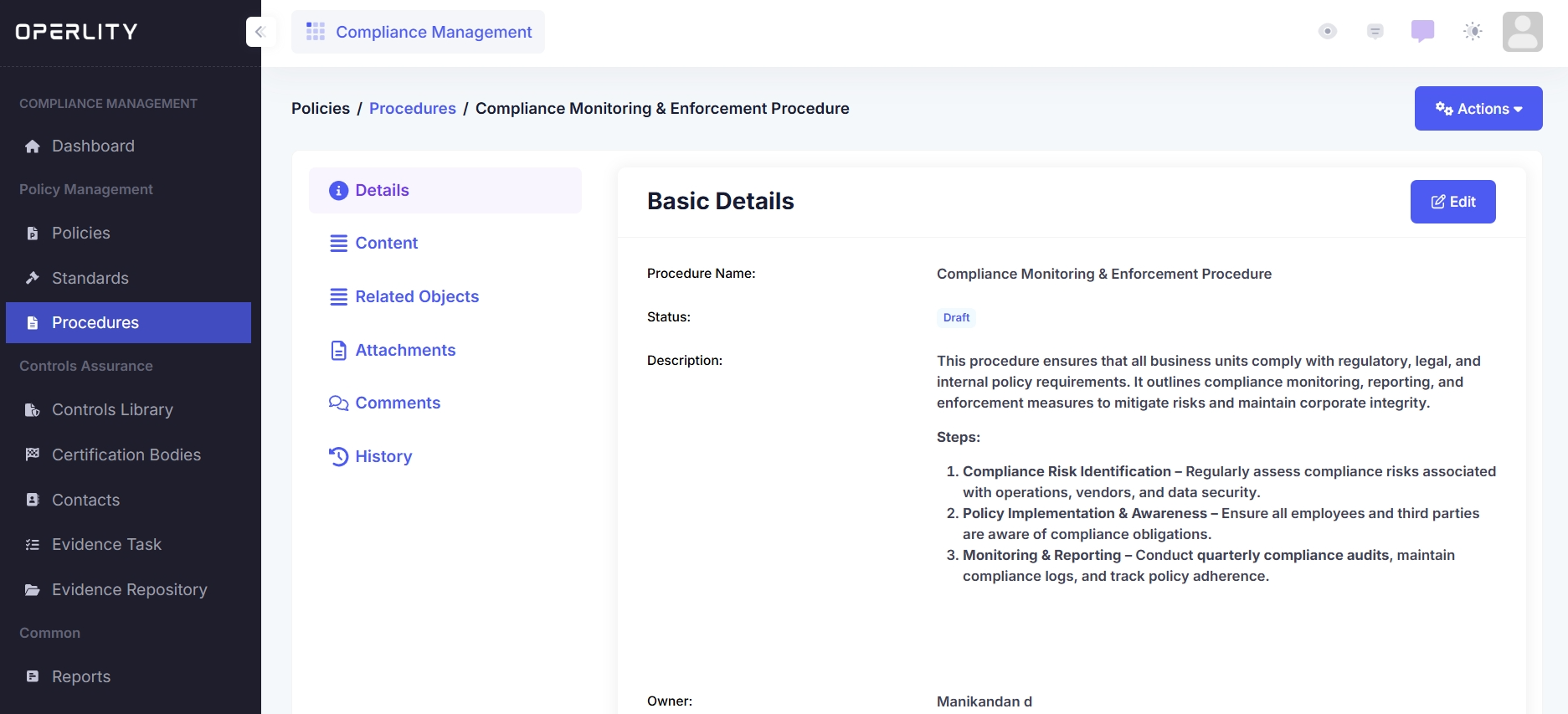
- Click on a procedure to view its details, including:
- Procedure Name
- Owner
- Last Updated Date
- Description (Explanation of the process)
- Users can edit the procedure and upload supporting documents.
Example: A "Compliance Monitoring & Enforcement Procedure" may outline steps for identifying compliance risks, ensuring policy implementation, and conducting periodic audits.
Was this article helpful?
That’s Great!
Thank you for your feedback
Sorry! We couldn't be helpful
Thank you for your feedback
Feedback sent
We appreciate your effort and will try to fix the article