Customizing evidence tasks and mapping policies to compliance frameworks is an essential part of ensuring that your organization meets regulatory and security requirements. Within the Compliance Management module, you can view imported frameworks, track implementation status, and map controls to relevant policies, standards, and risks. Follow these steps to configure evidence tasks and manage compliance mappings.
1. Navigating to Compliance Frameworks
- Navigate to the Compliance Management Module.
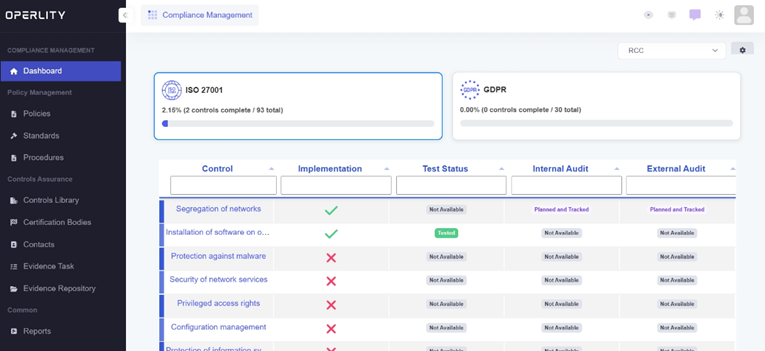
- The dashboard displays all imported compliance frameworks such as ISO 27001, GDPR, and others.
- Each framework has a list of controls with details about:
- Implementation status
- Test results
- Internal & external audit status
Example: If ISO 27001 has been imported, you can see its controls and their implementation progress.
2. Viewing Control Details
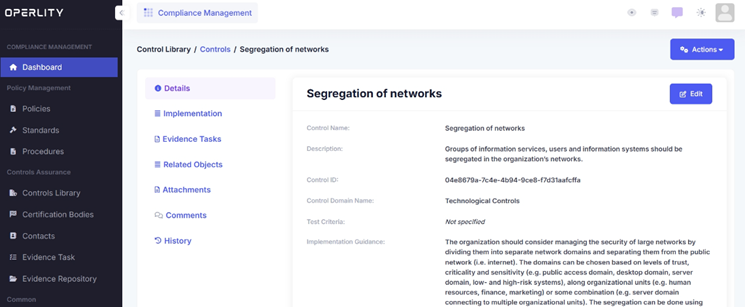
- Click on a specific control to open its details page.
- Here, you can see:
- Control Name & Description
- Implementation Workflow
- Mapped Standards & Policies
- Evidence Tasks related to this control
Example: Selecting "Segregation of Networks" will show detailed guidance on network security controls.
3. Adding an Evidence Task
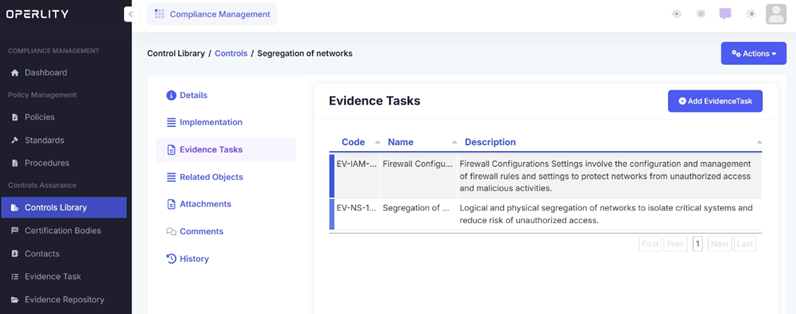
- Under the Evidence Tasks section, view the existing tasks related to the control.
- Click "Add Evidence Task" to create a new task.
- Enter the following details:
- Task Name (e.g., "Firewall Configuration Review")
- Description (e.g., "Review firewall rules for unauthorized access prevention.")
- Task Code (e.g., EV-NS-101)
- Key Elements (e.g., "Check for outdated firewall rules.")
- Click Save, and the evidence task will be added to the control.
4. Mapping Controls to Related Objects
Mapping compliance controls to relevant objects ensures proper alignment between policies, standards, and risks.
- Under Related Objects, select what you want to map:
- Related Policy
- Related Standard
- Related Risk
- Related Incident
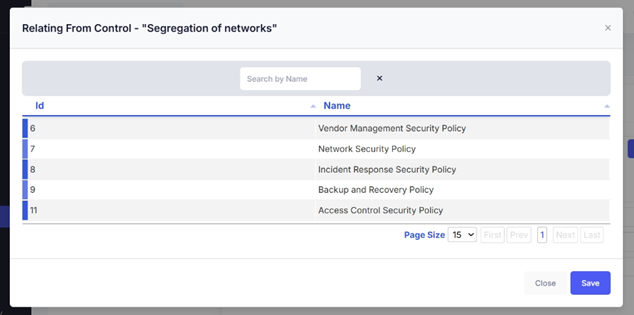
- Click on the Add Policy button (for example).
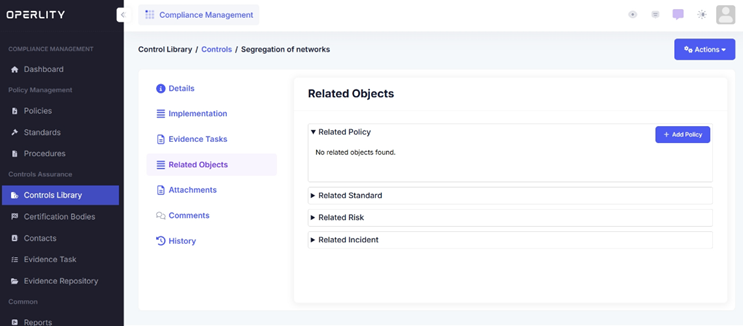
- A list of policies appears, allowing you to search and select the relevant policy.
- Click Save, and the selected policy is now mapped to the control.
Example: If mapping "Segregation of Networks" control, you might map it to "Network Security Policy."
5. Verifying Compliance Mappings
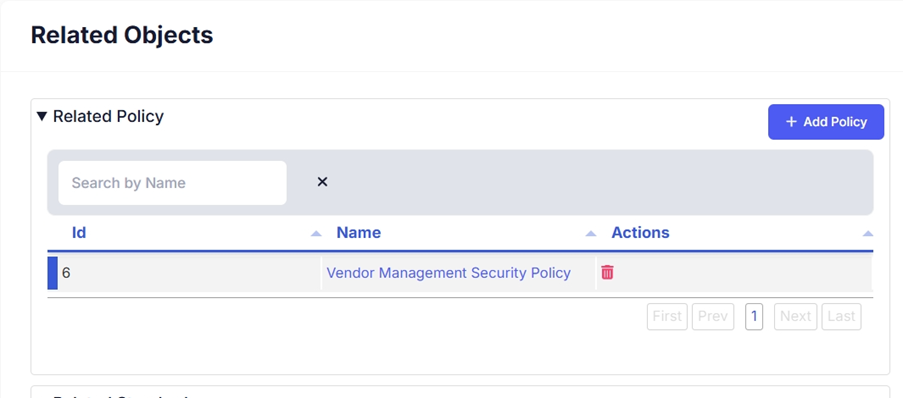
- Once the mapping is complete, review the Related Objects section.
- Here, you will see all linked policies, standards, and risks associated with the selected control.
- If needed, you can remove or edit mappings to maintain accuracy.
Was this article helpful?
That’s Great!
Thank you for your feedback
Sorry! We couldn't be helpful
Thank you for your feedback
Feedback sent
We appreciate your effort and will try to fix the article