Managing security controls effectively is a crucial aspect of compliance management. Organizations must ensure that controls are properly implemented, tested, and monitored to maintain compliance with frameworks such as ISO 27001, NIST 800-53, GDPR, and SOC 2. This guide walks you through the process of managing control implementations and conducting compliance tests in Operlity.
1. Navigating to the Compliance Management Module
To begin managing controls:
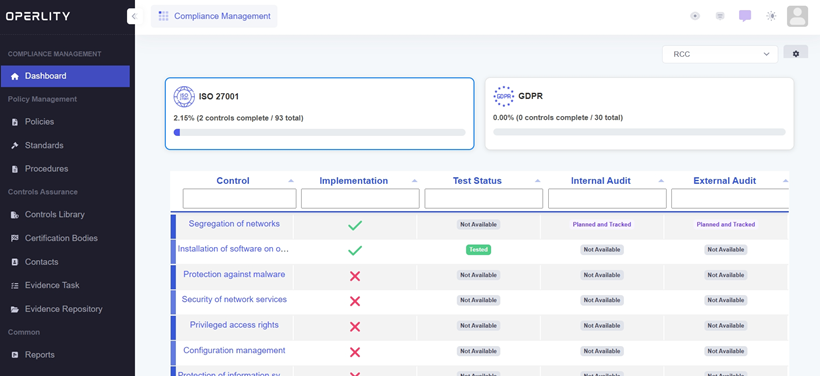
- Open the Compliance Management module.
- You can either:
- Select a control directly from the Dashboard, or
- Navigate to the Standards section, choose the desired compliance framework (e.g., ISO 27001), and access the Controls tab.
2. Implementing Security Controls
Once you've selected a control:
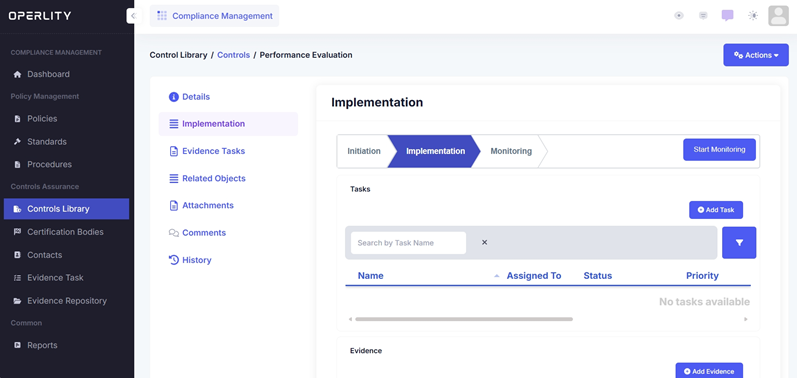
- Click on the "Implementation" tab.
- Fill in the required details:
- Select the asset the control applies to.
- Define the start and end date for the implementation.
- Provide an implementation description and justification.
- Click Submit to begin the implementation process.
3. Managing the Control Implementation Workflow
Once implementation begins, the control follows a structured workflow:
3.1 Adding Tasks for Implementation
- Under the Implementation tab, create specific tasks related to the control.
- Assign tasks to responsible team members for execution.
3.2 Attaching Evidence
- Click "Add Evidence" and select the relevant task.
- Upload necessary documents, reports, or proof of implementation.
- This ensures the control meets compliance requirements before testing.

4. Conducting Control Tests
4.1 Adding Test Cases
- Navigate to the Test Cases section under the selected control.
- Click "Add Test Case" and provide:
- Test Case Name
- Description
- Testing Objectives
- Save the test case for future execution.
4.2 Executing a Test
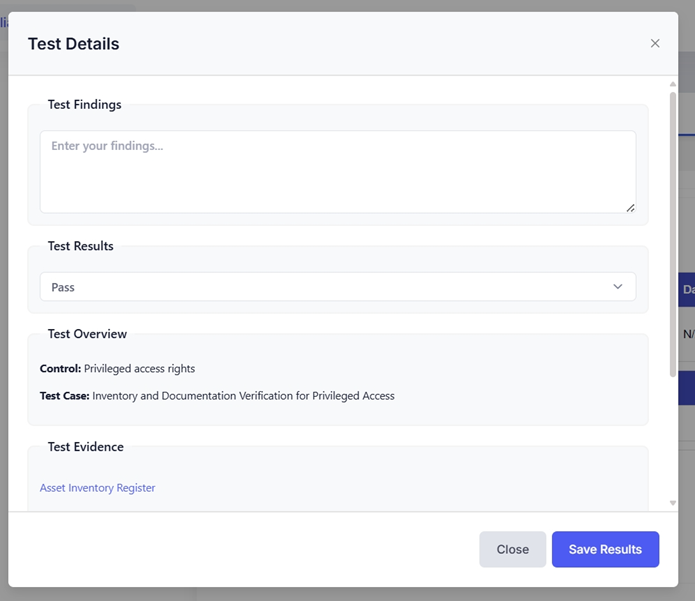
- Under the Actions column, select "Test" to conduct a real-time test.
- Enter test findings, review attached evidence and evaluate compliance.
- Choose the appropriate test result (e.g., Pass/Fail).
4.3 Reviewing Test Results
- Once a test is completed, its status updates on the Compliance Dashboard.
- Users can check test details, findings, and evidence validation for each control.

5. Moving to the Monitoring Stage
Once implementation and testing are completed:
- Move the control to the Monitoring stage.
- This ensures continuous oversight and periodic reassessments to maintain compliance.
- Future internal audits will include test records to verify ongoing adherence.
6. Monitoring Compliance Progress
As your organization progresses with control implementations, you can track compliance status via:
- Compliance Dashboard: Real-time overview of control implementation and test results.
- Compliance Reports: Generate detailed reports on progress and gaps.
- Internal Audits: Validate compliance readiness through periodic assessments.
Was this article helpful?
That’s Great!
Thank you for your feedback
Sorry! We couldn't be helpful
Thank you for your feedback
Feedback sent
We appreciate your effort and will try to fix the article