Managing third-party risk effectively requires structured assessments that evaluate vendors, partners, and suppliers based on predefined criteria. GRCHub enables users to create questionnaires for third-party risk assessments, ensuring compliance and risk mitigation.
1. Navigating to the Third-Party Risk Management Module
To create a questionnaire, follow these steps:
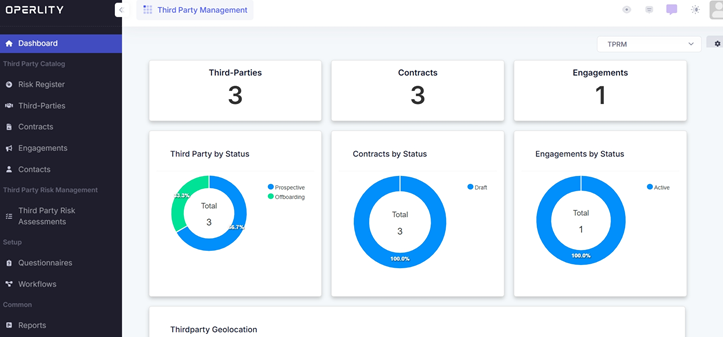
- From the left-hand menu, navigate to the Third-Party Risk Management Module.
- Under the Setup section, click on "Questionnaires".
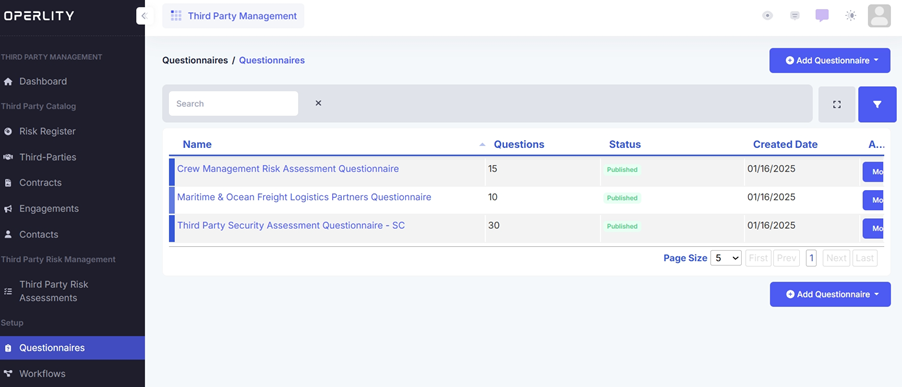
- Here, you can view all the existing questionnaires along with their status, number of questions, and created date.
2. Creating a New Questionnaire
To create a new questionnaire, click on the "Add Questionnaire" button at the top-right corner. Users can create a questionnaire in two ways:
- Generate a Questionnaire Using AI
- Create a Blank Questionnaire
Option 1: Generating a Questionnaire Using AI
GRCHub provides an AI-powered questionnaire generation feature to streamline risk assessments.
Step 1: Define the Assessment Objective
- Select the asset or category for which you want to create the questionnaire (e.g., Third-Party Security Assessment, Vendor Compliance).
- Define the objective of the questionnaire, such as:
- Evaluating Vendor Security Practices
- Assessing Financial Stability
- Ensuring Regulatory Compliance
- The AI engine will analyze the objective and generate a questionnaire with relevant sections and questions.
Step 2: Review and Edit AI-Generated Questions
Once the AI generates the questionnaire, you can:
- Edit, reorder, or remove sections and questions.
- Assign weightages to different sections based on their importance.
- Add or modify existing questions to align with business-specific risk evaluation.
Example: If creating a Third-Party Security Assessment Questionnaire, AI may generate the following sections:
- Data Protection Measures
- Incident Response Capabilities
- Regulatory Compliance
- Financial Stability
Each section will include pre-populated questions tailored to the objective.

Option 2: Creating a Blank Questionnaire
For a fully customized questionnaire, follow these steps:
Step 1: Enter Basic Information
- Provide a name and description for the questionnaire.
- Assign an owner who will manage the questionnaire.
- Select the relevant asset category from:
- Business Catalog
- IT Catalog
- Choose whether to enable AI-powered risk generation, which can automatically suggest risks once the assessment is completed.
Step 2: Build the Questionnaire
- Click Save to create a blank questionnaire.
- Manually add sections and questions according to the assessment requirements.
- Use editing tools to reorder, modify, or remove questions as needed.
Example: If conducting a Cybersecurity Risk Assessment for a vendor, you may create sections like:
- Access Control & Authentication
- Data Encryption Standards
- Incident Management Procedures
- Compliance with Industry Regulations
Each section should contain specific, measurable questions to evaluate the third party’s risk profile.
3. Assigning Weightage and Publishing the Questionnaire
Once the questionnaire is finalized:
- Assign weightages to different sections to reflect their importance in the overall risk evaluation.
- Click "Publish" to make the questionnaire available for third-party assessments.
Example: If Regulatory Compliance is a critical factor, assign it a higher weightage compared to general business processes.
Was this article helpful?
That’s Great!
Thank you for your feedback
Sorry! We couldn't be helpful
Thank you for your feedback
Feedback sent
We appreciate your effort and will try to fix the article