1. Accessing the Risk Register
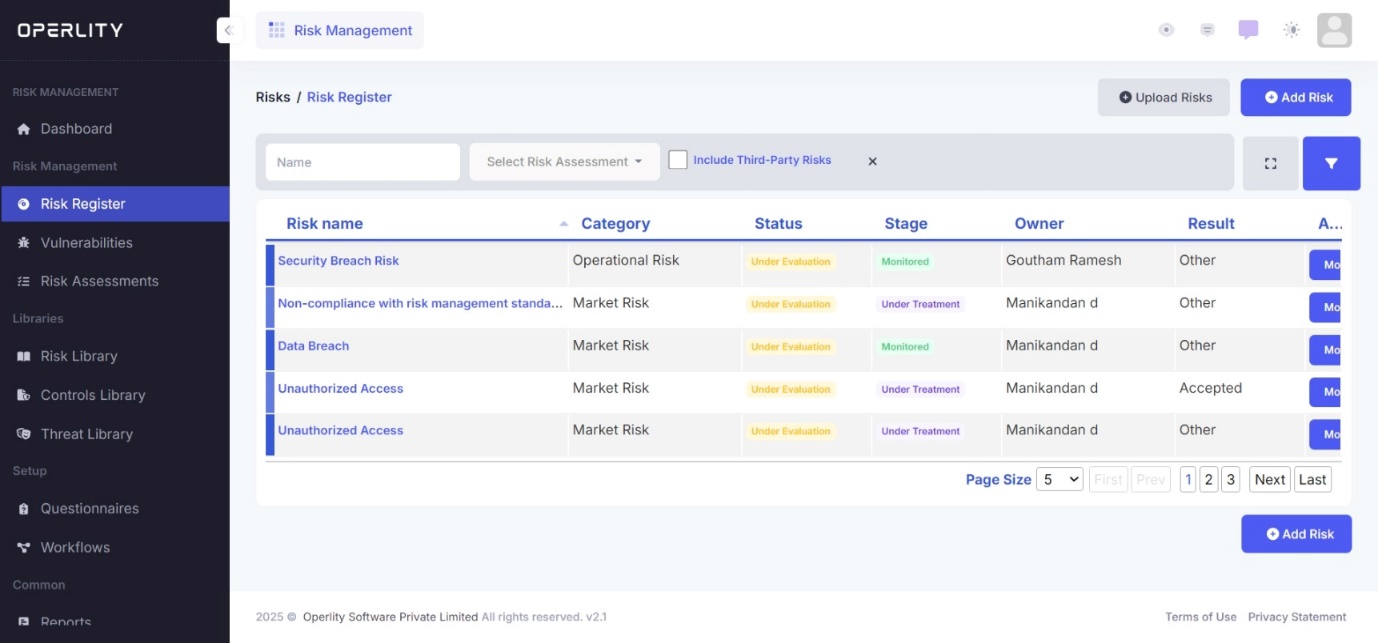
- Navigate to the Risk Management Module.
- From the left-hand menu, select the Risk Register tab.
- This will open a data table displaying all recorded risks.
Example: You may see risks such as "Unauthorized access to sensitive data", "Ransomware attack on company servers", or "Supply chain disruption due to vendor failure" listed in the register.
2. Adding Risks to the Risk Register
- Users can manually create risks by clicking on "Add Risk" and entering relevant details.
- Example: You manually add a risk titled "Data Breach in Customer Database", define its category as Legal or Reputational risk, and assign it to the IT Security Team for assessment.
- Alternatively, users can click "Upload Risks" to bulk import a list of risks using the Bulk Import feature.
- Example: You have a spreadsheet of 50 potential risks identified during an internal audit. Instead of adding them one by one, you use the bulk upload feature to import them instantly.
3. Managing Risks in the Risk Register
3.1 Viewing and Evaluating Risks
- Click on any risk to view its detailed information and risk workflow.
Note: GRCHub provides a default risk workflow, but all workflows are fully customizable. Users can add additional stages if needed, such as approval steps for specific processes.
- Newly identified risks will typically be in the "Identified" stage. Click on "Start Evaluation" to proceed with risk.
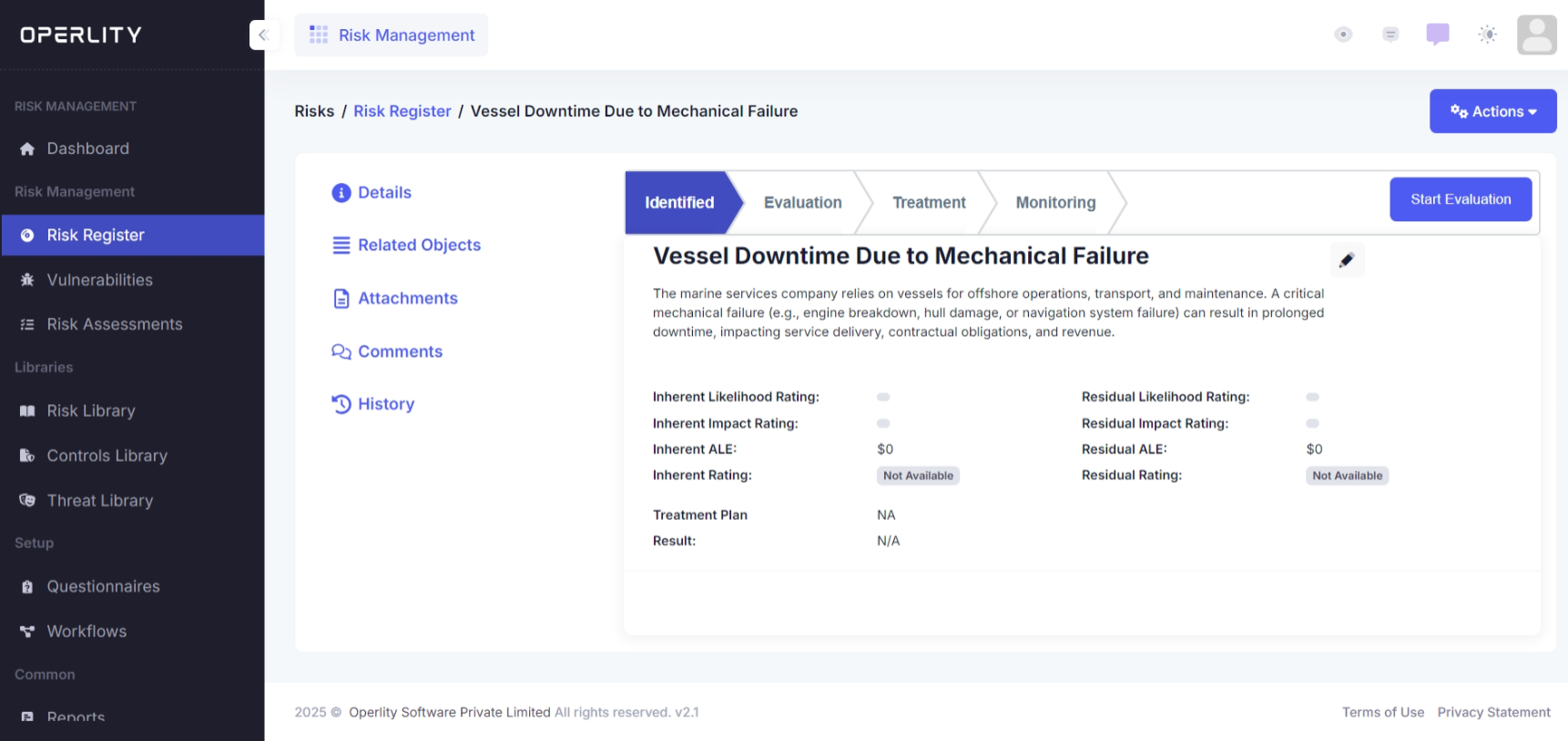
Example: You select the risk "Vessel Downtime Due to Mechanical Failure" and move it into the evaluation phase for analysis.
3.2 Evaluation Stage
- In this stage, users can assess inherent risk by defining:
- Likelihood Rating (e.g., High for phishing attacks).
- Impact Rating (e.g., High if sensitive employee credentials are stolen).
- Annual Loss Exposure (ALE) (e.g., $10,000 estimated financial impact).
- Once these data points are filled in, click "Save", then click "Start Treatment" to move to the next stage.
4. Treatment Stage
In this stage, users can:
- Re-edit the Inherent Risk Analysis, if needed.
- Click on "Risk Treatment Option" to choose from three available options:
4.1 Risk Treatment Plan
- Define the treatment approach for the risk such as:
- Accepted: The risk is acknowledged but not mitigated.
- Example: If the cost of mitigation is higher than the impact, you may accept the risk of "Power Outage in Office" if there’s a backup power source available.
- Reduced: The risk is mitigated through corrective actions.
- Example: For "Unauthorized Access to Servers", you implement multi-factor authentication (MFA) to reduce risk.
- Transferred: The risk is shifted to a third-party vendor (e.g., insurance company).
- Example: For "Natural Disasters Affecting Business Operations", you transfer financial liability to an insurance provider.
- Avoided/Ignored: The risk can be ignored under specific conditions according to the company.
- Accepted: The risk is acknowledged but not mitigated.
4.2 Risk Mitigation Tasks (AI-Assisted)
- The AI engine automatically suggests appropriate mitigation tasks for the selected risk.
- Users can:
- Review AI-recommended tasks listed under risk mitigation.
- Click "Add Task" to incorporate them into the risk mitigation process.
Example: You select "Data Breach in Customer Database", and the AI suggests:
- "Enable encryption for all stored customer data."
- "Implement role-based access control (RBAC)."
- "Schedule quarterly security audits."
You click "Add Task" to include these in the mitigation plan.
4.3 Control Implementation Measures (AI-Assisted)
- AI-powered control recommendations allow users to strengthen compliance efforts.
- Users can:
- Click "Get Control Recommends" to generate AI-suggested controls based on security frameworks.
- Click the Add (+) symbol to incorporate the suggested control into the risk mitigation process.
Example: You are mitigating "Phishing Attacks on Employees", and AI recommends:
- "Implement email filtering solutions."
- "Conduct cybersecurity awareness training."
- "Enforce domain-based email authentication (DMARC, SPF, DKIM)."
You select the controls that best fit your organization's needs and add them.

4.4 Residual Risk Analysis
- Once mitigation efforts are applied, users can manually add residual risk analysis to assess remaining risk levels after treatment.
Example: After implementing firewalls, IDS/IPS, and regular patching, the residual risk for "External Cyber Attacks" is now Low.
5. Advancing and Monitoring Risks
- Once mitigation and control measures are in place, the risk can be moved forward in the workflow for continuous monitoring.
Example: A "Supply Chain Vendor Failure" risk has been mitigated with alternative vendors, SLA reviews, and regular supplier audits, allowing the risk to proceed to monitoring.
6. Reopening a Risk
- If additional actions, modifications, or reassessments are required, users can reopen the risk at any stage.
Example: A "Network Outage" risk was initially marked as Resolved, but a new vulnerability was discovered. You reopen the risk for further action.
Was this article helpful?
That’s Great!
Thank you for your feedback
Sorry! We couldn't be helpful
Thank you for your feedback
Feedback sent
We appreciate your effort and will try to fix the article