A Risk Assessment in GRCHub allows organizations to identify, evaluate, and mitigate risks associated with business operations, IT infrastructure, and third-party vendors.
To begin a risk assessment, navigate to one of the following modules in GRCHub:
- Risk Management Module
- Third-Party Risk Management Module
- Business Resilience Module
Once inside the selected module, click on the "Questionnaire" tab from the left-hand menu to manage and select relevant assessment templates.
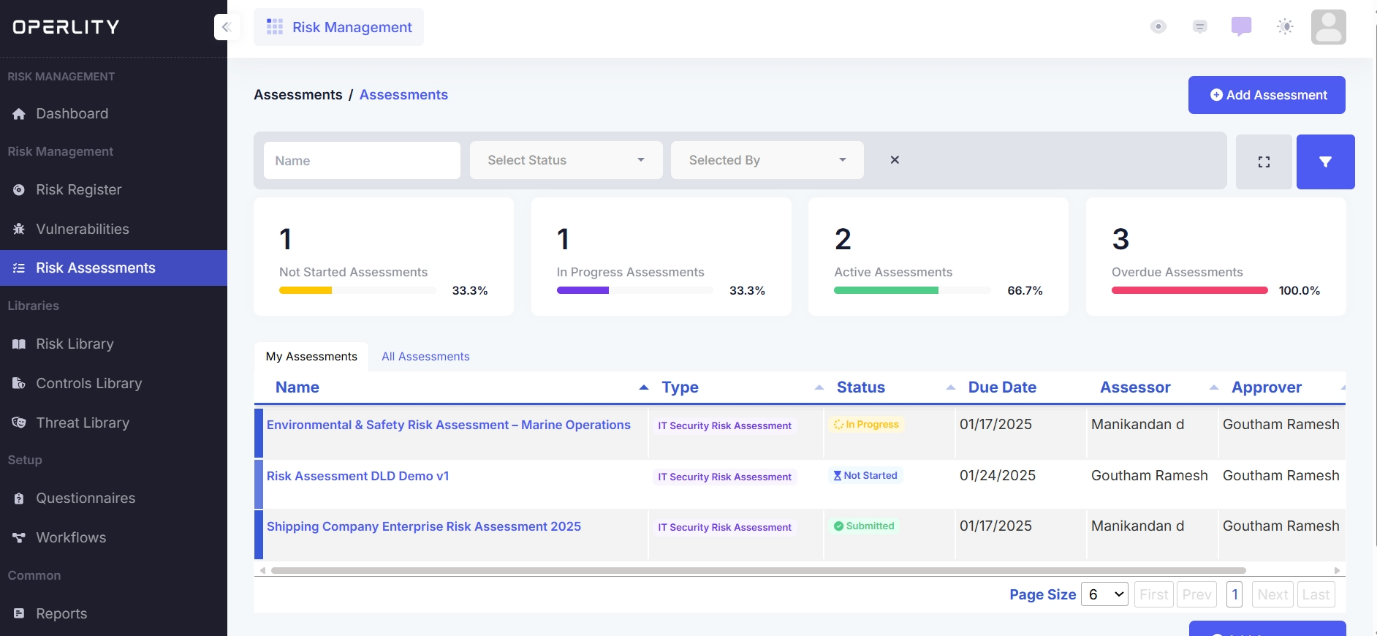
1. Creating a Project for the Assessment
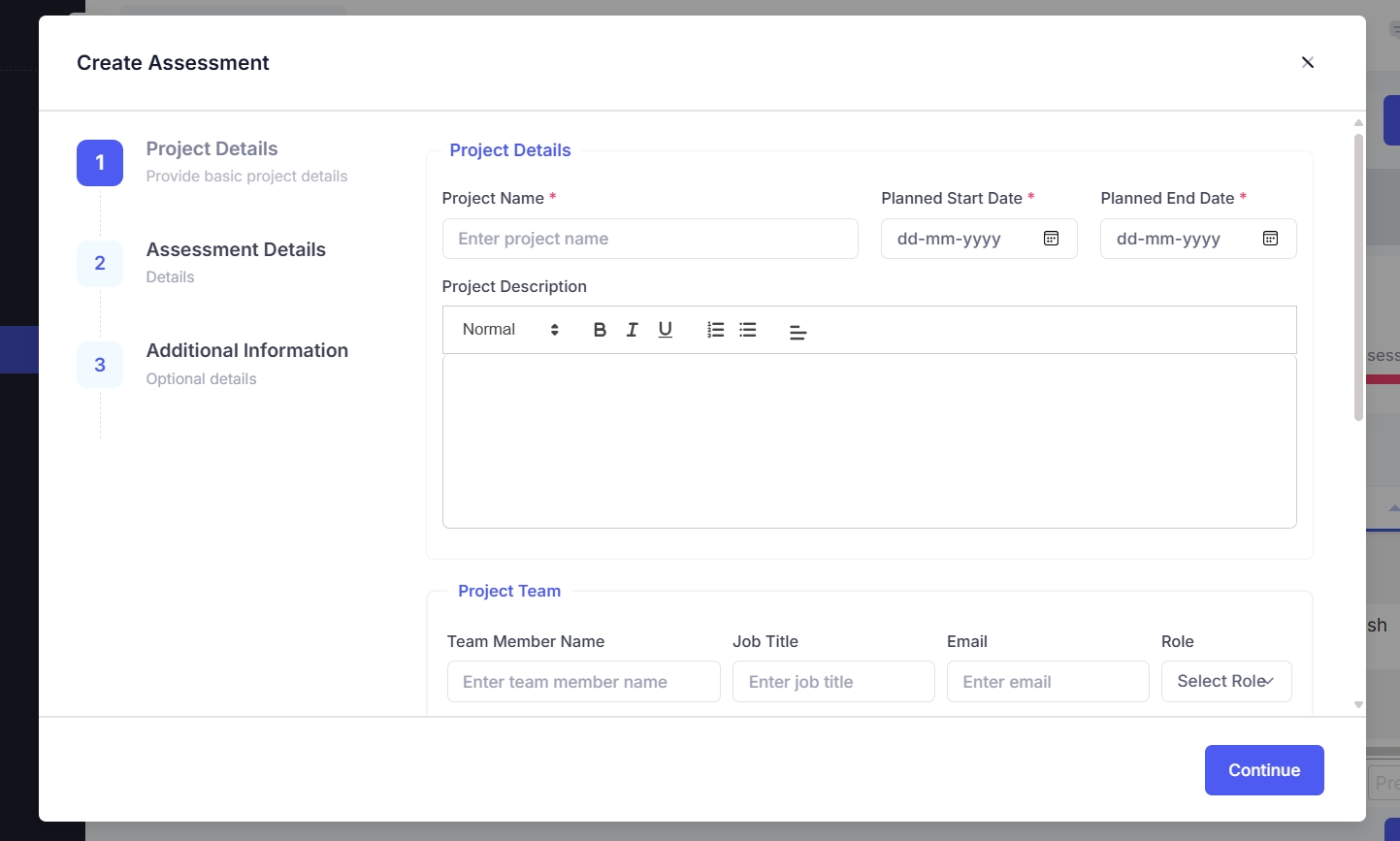
To initiate a risk assessment, follow these steps:
- Enter the project details, including:
- Project Name (e.g., "Third-Party Vendor Risk Assessment")
- Description
- Planned Start and End Dates
- Assign team members and define the budget for the assessment.
GRCHub offers two ways to conduct a risk assessment:
- Manual Risk Assessment
- AI-Assisted Risk Assessment
Example: If assessing a new cloud service provider, define the assessment scope, select relevant team members, and determine if AI assistance is needed.
2. Conducting a Risk Assessment (AI-Assisted Approach)
Step 1: Select the Asset and Questionnaire
- Choose the asset that will be assessed (e.g., Cloud Infrastructure, Supply Chain, Network Security).
- Select the relevant questionnaire from the available list.
Example: If assessing a vendor’s security posture, choose the "Third-Party Security Compliance" questionnaire.
Step 2: Describe the Assessment
- Provide additional context and details about the assessment scope.
Example: If assessing Data Protection Compliance, specify whether the vendor handles sensitive customer data.
Step 3: Start the Questionnaire
- Click "Start Assessment" to initiate the evaluation.
- Navigate to the Questionnaire tab and respond to questions based on the selected asset.
Example: If assessing Cyber Risk, answer questions on firewall policies, multi-factor authentication, and encryption standards.
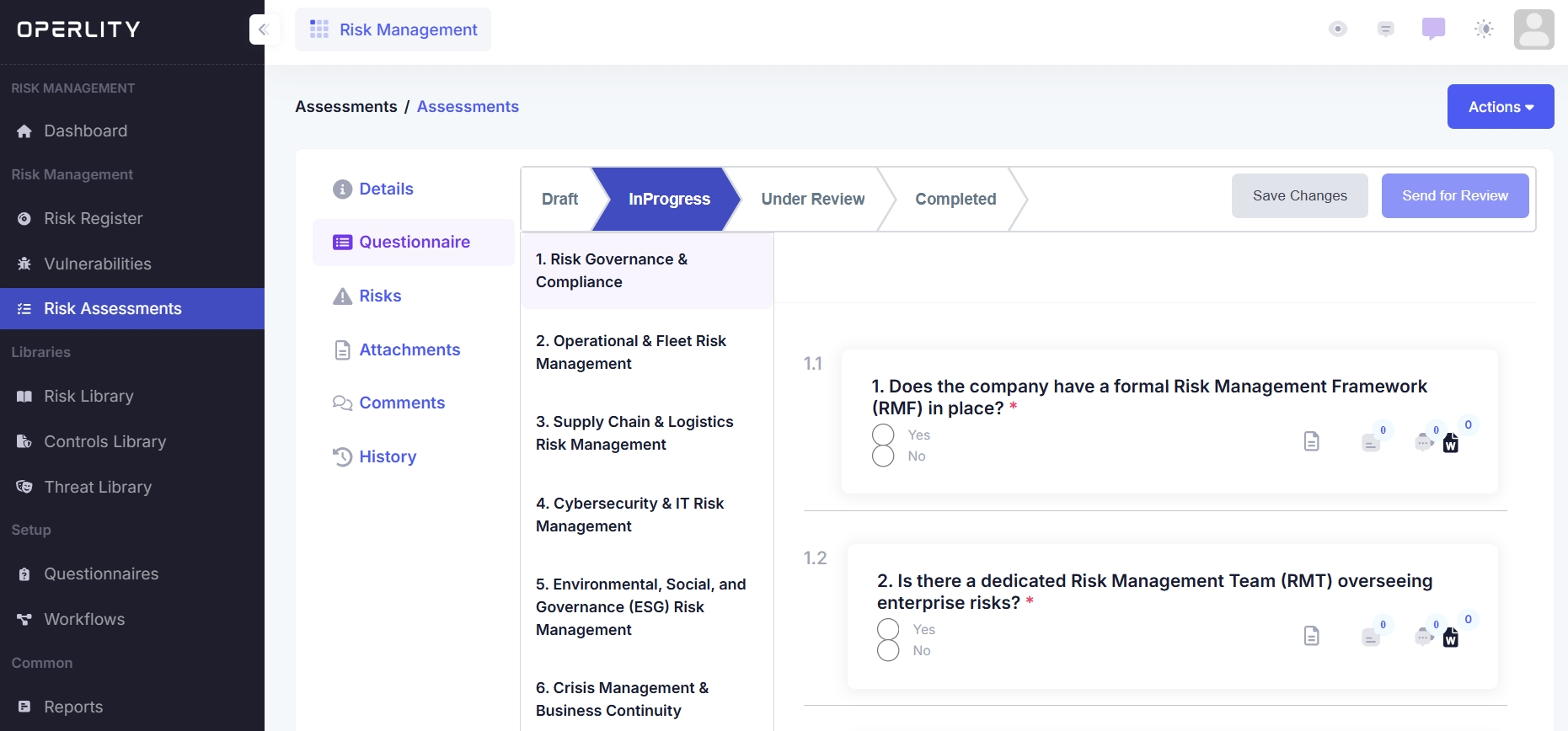
Step 4: Submit for AI-Driven Review
- Once the questionnaire is completed, send it for AI review.
- The AI engine will:
- Validate responses.
- Detect missing or inconsistent answers.
- Provide insights on potential risks.
Example: If an answer indicates no encryption for sensitive data, AI may flag it as a high-risk finding.
Step 5: Analyze Risk Exposure
- Navigate to the Risks tab to view all identified risks.
- Clicking on a risk entry will redirect you to the Risk Register, where you can:
- Track risk workflows
- Monitor risk status
- Assign mitigation actions
Example: If AI detects a high-risk vendor, risk managers can:
- Review risk impact
- Assign corrective actions
- Monitor the vendor's compliance status
Was this article helpful?
That’s Great!
Thank you for your feedback
Sorry! We couldn't be helpful
Thank you for your feedback
Feedback sent
We appreciate your effort and will try to fix the article