Once an audit engagement has started, assigning workpapers ensures that responsibilities are properly distributed, and progress can be effectively tracked.
1. Assigning Workpapers
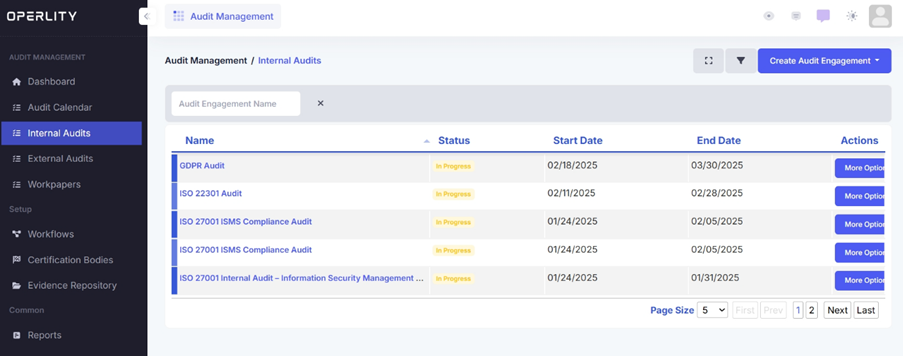
- Navigate to the Audit Management Module and select Internal or External Audit.
- Choose the audit you want to work on.
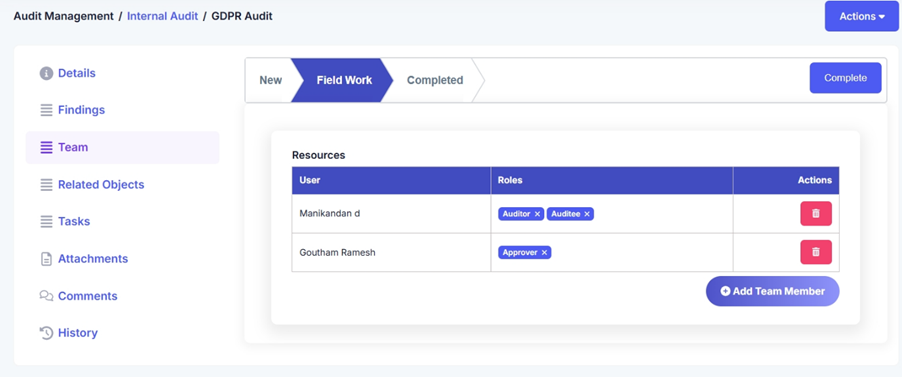
- Ensure team members are added by selecting the Teams tab and assigning them roles.
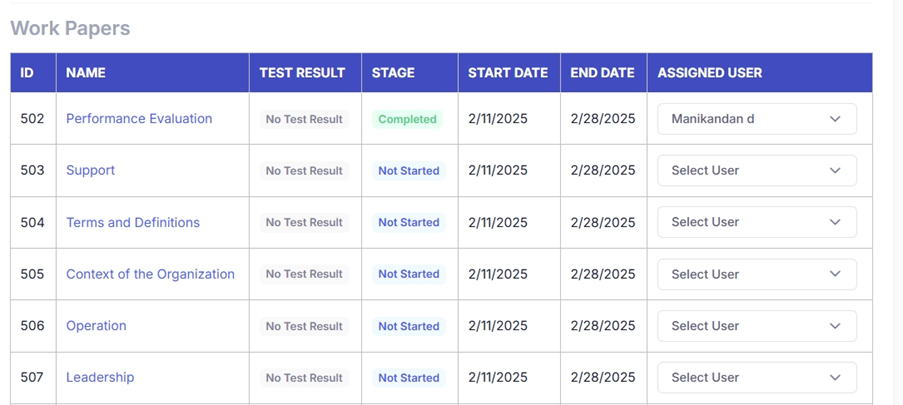
- Scroll down in the Details tab to view all workpapers.
- Click the dropdown under Assigned User and select the team member responsible for that workpaper.
Example:
In an ISO 27001 Information Security Audit, workpapers may include:
- Access Control Policies (assigned to IT security personnel)
- Data Encryption Procedures (assigned to cybersecurity specialists)
- Incident Response Plan Review (assigned to risk management staff)
2. Users can track audit progress through:
- The Audit Dashboard, which provides real-time updates.
- Generating Audit Reports for a detailed overview of compliance and risk findings.
3. Reviewing Workpapers and Evidence
Each workpaper provides details on the controls and processes being audited.
- Click on a workpaper to view:
- Control Details (e.g., "Access Control Policies")
- Implementation Status (e.g., "Implemented" or "Pending")
- Related Risks and Assets
- Click Proceed to move forward with the review.
- Review evidence to support compliance claims (e.g., logs, policies, configurations).
- Attach test results or assessments to validate findings.
- Click Submit to finalize the workpaper review.
Example:
An IT company conducting a NIST 800-53 security audit reviews the Privileged Access Management (PAM) workpaper, verifies administrator login logs, and uploads audit logs as evidence.
4. Completing the Audit Workflow
- Ensure all workpapers are reviewed and validated.
- Verify evidence submissions and close pending audit findings.
- Finalize the audit by changing the status to "Completed".
Was this article helpful?
That’s Great!
Thank you for your feedback
Sorry! We couldn't be helpful
Thank you for your feedback
Feedback sent
We appreciate your effort and will try to fix the article