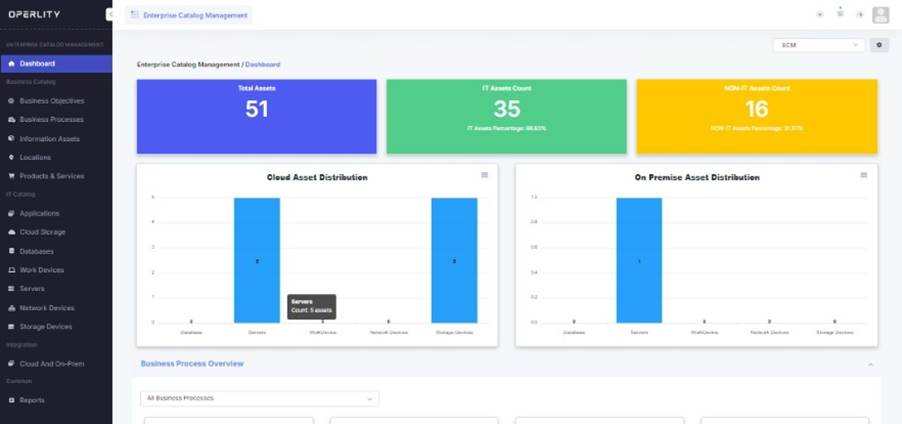
The Enterprise Catalog Management module in GRCHub helps organizations structure and manage key business components, including business processes, information assets, and products & services.
Navigating to Enterprise Catalog Management
- Log in to GRCHub and navigate to the Enterprise Catalog Management module.
- Select the specific type of business catalog you wish to manage, such as:
- Business Objectives – Defines the strategic goals of the organization.
- Business Processes – Describes the workflows within an organization.
- Information Assets – Includes critical data, documents, and digital assets.
- Products & Services – Represents the offerings of the organization.
Example: A logistics company wants to track its business objectives, such as improving supply chain efficiency and enhancing customer service. They will add these objectives to the system for better risk and compliance management.
Method 1: Manually Adding a Business Objective
Steps to Add a Business Objective
- Click on "Business Objectives" from the left-hand menu.
- In the top-right corner, click "Add Business Objective."
- A form will appear where you need to enter the following details:
- Name – A meaningful title for the objective.
- Description – A brief explanation of the objective.
- Priority – Assign a priority level (e.g., High, Medium, Low).
- Business Objective Category – Select a category that aligns with your objective.
- Owner – Assign an owner responsible for this objective.
- Click "Save" to finalize the addition.
- The Business Objective will now be available in the system.
Example 1: Creating a Business Objective for a Maritime Logistics Company
- Name: "Efficiency and Safety of Vessel Operations"
- Description: "Ensure optimal efficiency in fleet operations while maintaining safety standards for cargo handling."
- Priority: High
- Business Objective Category: Operational
- Owner: Fleet Operations Manager
Different business assets (processes, information assets, etc.) may have different required fields.

Method 2: Bulk Import of Business Objectives
If you have multiple business objectives to add, use the Bulk Import feature for quick uploads.
Steps to Bulk Import Business Objectives
- Click on "Upload Business Objective" at the top-right corner.
- A pop-up window will appear where you can:
- Select a template for import.
- Choose the import type (e.g., Business Objectives).
- Click "Import Template" at the bottom of the pop-up.
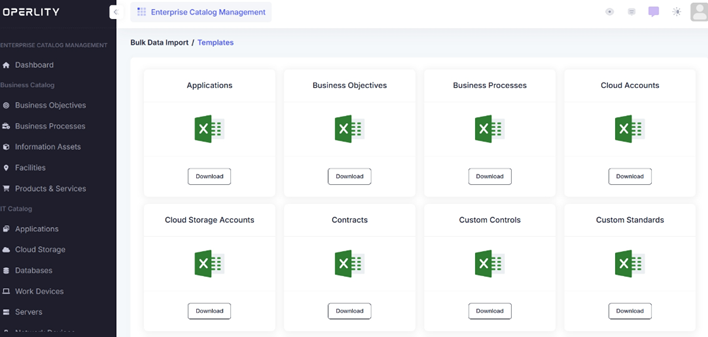
- You will be redirected to a Bulk Data Import page where you can download templates for different asset types.
- Download the Business Objectives template and fill in the necessary details, such as:
- ID (Unique identifier for each objective)
- Name (Title of the objective)
- Description (Brief details of the objective)
- Category (Operational, Regulatory, Reputational, etc.)
- Priority (High, Medium, Low)
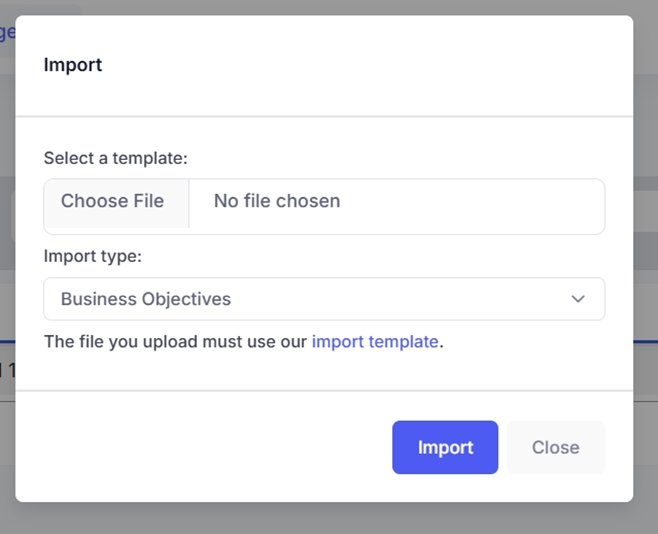
- After completing the template, go back to the Upload Business Objective pop-up.
- Click "Choose File", select the filled-out template, and then click "Import."
- All the business objectives from the file will be added to the system automatically.
Example: Importing Business Objectives for a Cybersecurity Firm
- ID: BO-001
- Name: "Enhance Cloud Security Measures"
- Description: "Implement cloud security controls to safeguard customer data and prevent breaches."
- Category: IT Security
- Priority: High
- Owner: CISO (Chief Information Security Officer)
By using bulk import, organizations can upload large volumes of business objectives without manual data entry, saving time and effort.
Was this article helpful?
That’s Great!
Thank you for your feedback
Sorry! We couldn't be helpful
Thank you for your feedback
Feedback sent
We appreciate your effort and will try to fix the article