Creating a questionnaire in GRCHub allows users to structure assessments, gather data efficiently, and assign weightages for risk evaluations.
1. Navigating to the Risk Management Module.
- From the left-hand menu, select "Questionnaire" under the Setup section.
- Click "Add Questionnaire", where you can create a questionnaire in two ways:
- Generate a Questionnaire Using AI
- Create a Blank Questionnaire

2. Generating a Questionnaire Using AI
GRCHub offers AI-powered questionnaire generation to automate the process and ensure relevant risk evaluations.
Step 1: Select the Asset and Define the Assessment Objective
- Choose the relevant asset (e.g., IT Infrastructure, Business Operations).
- Define the assessment objective, such as Vendor Risk Evaluation or Business Impact Analysis.
- The AI engine will analyze the prompt and generate a customized questionnaire.
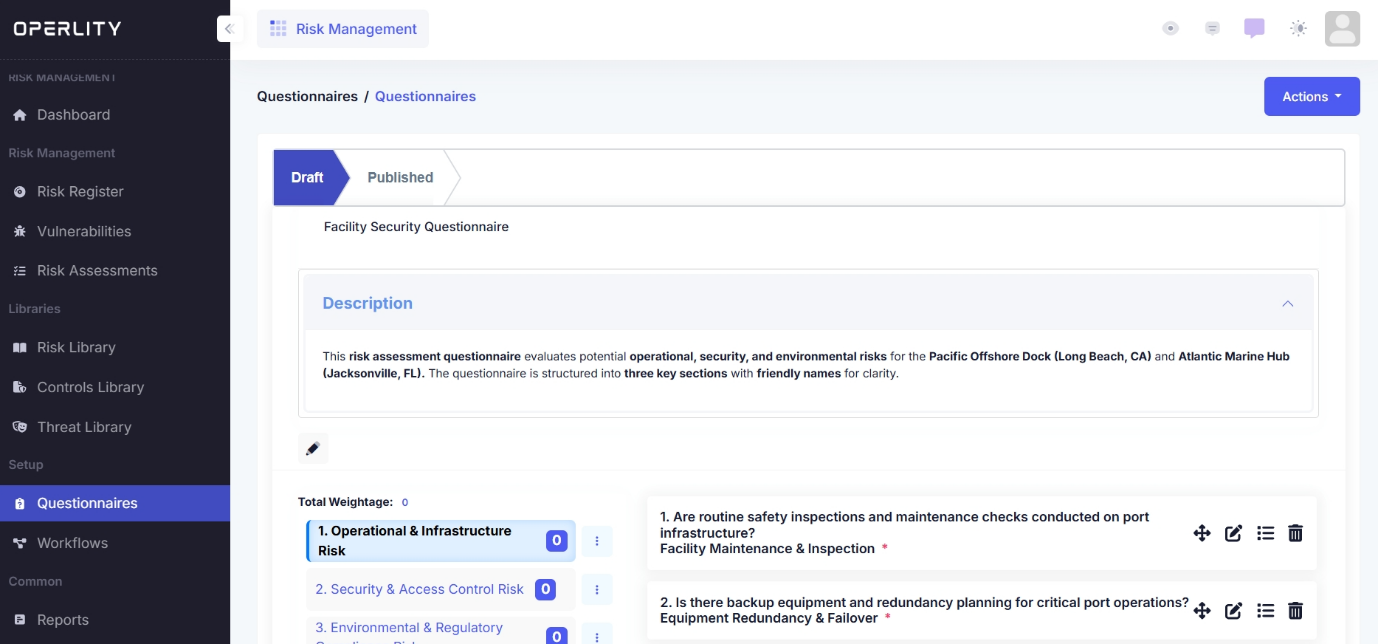
Step 2: Review and edit the AI-Generated Questionnaire
- The generated questionnaire consists of multiple sections with pre-populated questions.
- You can:
- Assign weightages to each section.
- Click the three-dot menu next to a section to:
- Edit the section name.
- Add or remove questions.
- Delete a section if needed.
- Within each section, questions can be:
- Edited, reordered, assigned rules, or deleted.
Example: If conducting a Vendor Risk Assessment, the AI can generate sections like:
- Data Security Policies
- Regulatory Compliance
- Financial Stability
Each section will have automated questions based on these risk areas.
3. Creating a Blank Questionnaire
For a fully custom questionnaire, follow these steps:
Step 1: Enter Basic Information
- Provide a name and description for the questionnaire.
- Assign an owner and select the catalogfrom which you need the asset:
- Business Catalog or IT Catalog.
- Choose whether to enable AI-powered risk generation to automate risk identification once the assessment is completed.
Step 2: Build the Questionnaire
- Click "Save" to generate a blank questionnaire.
- Manually add sections and questions as per assessment needs.
- Use the edit, delete, and reorder functions to refine your questionnaire.
Example: If conducting a Cybersecurity Maturity Assessment, create sections like:
- Access Control Measures
- Encryption Practices
- Incident Response Planning
Each section should have specific questions related to security maturity.
4. Assign Weightage and Publish
- Assign weightages to sections to quantify assessment factors.
- Once finalized, click "Publish" to make the questionnaire available for assessments.
Example: If a section like Incident Response Planning is critical, assign it higher weightage than general security policies.
By following these steps, users can create structured, AI-assisted, or manually customized questionnaires to streamline assessments.
Was this article helpful?
That’s Great!
Thank you for your feedback
Sorry! We couldn't be helpful
Thank you for your feedback
Feedback sent
We appreciate your effort and will try to fix the article