The Enterprise Catalog Management Module allows organizations to manage business and IT assets efficiently. Users can track relationships between various assets such as business processes, applications, information assets, facilities, and policies to maintain an organized catalog.
1. Navigating the Enterprise Catalog Management Module
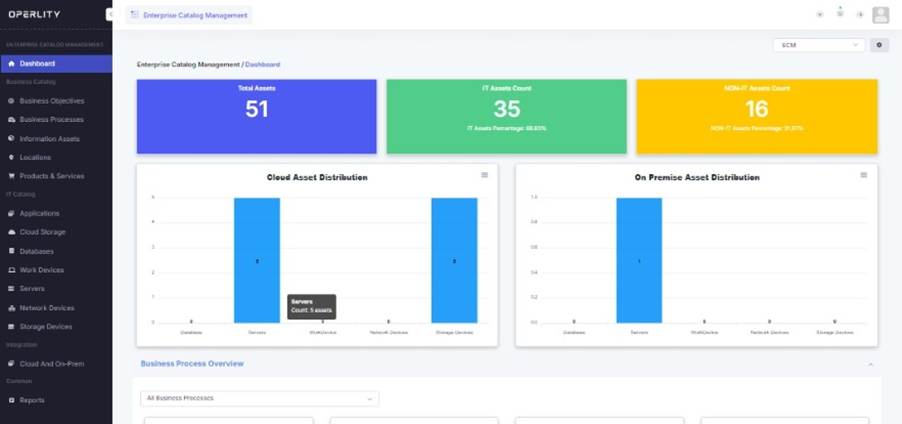
- Access the Enterprise Catalog Management Module from the left-hand menu.
- The Dashboard provides an overview of the total assets, IT assets, and non-IT assets.
- Users can select specific asset types from the Business Catalog or IT Catalog sections.
Example: A company managing its business processes can navigate to the Business Processes section to track and update fleet operations, customer contracts, and service agreements.
2. Viewing and Filtering Catalog Items
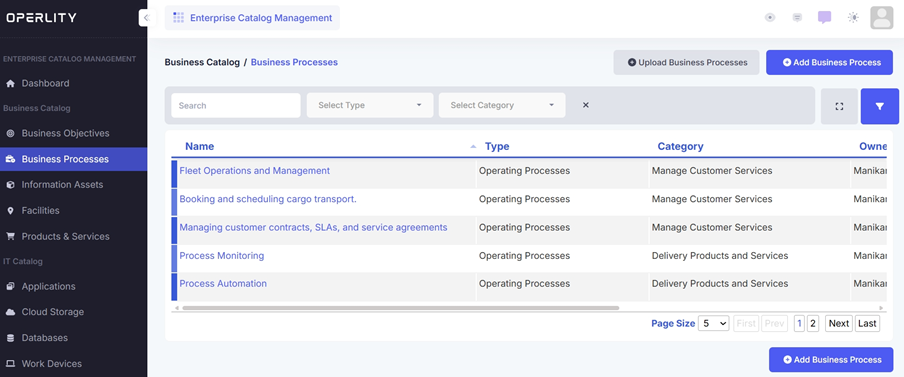
- Select the asset type you want to manage (e.g., Business Processes, Applications, Work Devices).
- Use the search bar and filters to refine results by name, type, and category.
- Click on a specific item to open its details.
Example: A logistics firm searching for “Fleet Operations and Management” can filter business processes related to fleet services and select the relevant process for review.
3. Managing Business Process Details
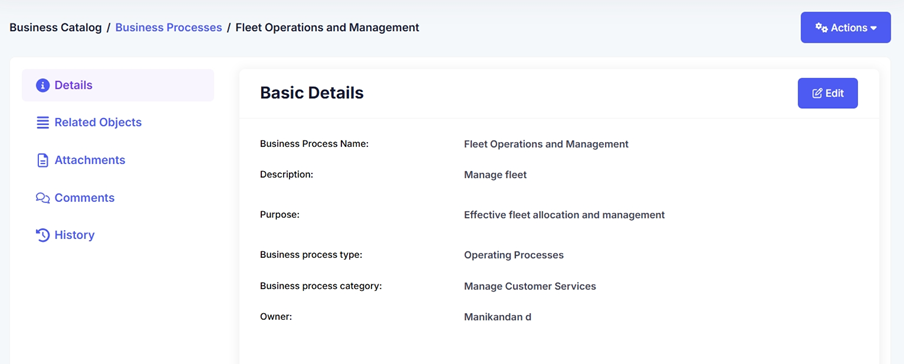
Once a business process is selected, users can view and update key details, including:
- Description: Overview of the process
- Purpose: Business function and objectives
- Process Type: Operating, Strategic, or Supporting
- Category: Associated service or department
Example: For the "Fleet Operations and Management" process, users can see that its purpose is "Effective fleet allocation and management", categorized under Customer Services.
4. Mapping Related Objects
Users can establish relationships between business processes and other assets, policies, risks, controls, etc, by mapping related objects.
Steps to Add a Related Object:
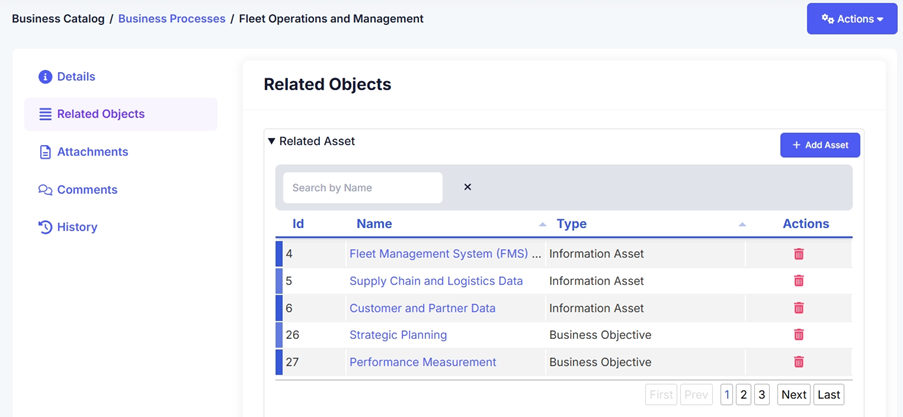
- Go to the "Related Objects" tab in the selected catalog item.
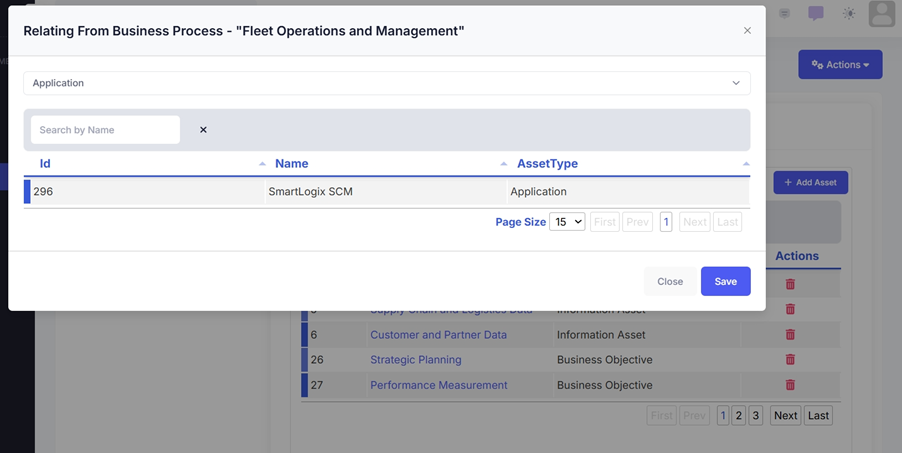
- Select the dropdown of the category you want to add which can be an asset, policy, risk, etc. Let’s take another asset for example.
- Click "Add Asset" to open the asset selection window.
- Choose the type of asset you want to relate (e.g., Application, Policy).
- Select the specific asset from the list and click "Save".
Example: If a company uses the "SmartLogix SCM" application for fleet tracking, they can map it as a related object under Fleet Operations and Management.
5. Viewing and Managing Mapped Relationships
- All related objects appear under the "Related Objects" section.
- Users can review linked assets, policies, and standards to ensure proper alignment.
- If necessary, users can remove outdated mappings and update them with more relevant items.
Example: A company undergoing a compliance audit may need to update the fleet management business process by linking it to a new regulatory standard or security control.
Was this article helpful?
That’s Great!
Thank you for your feedback
Sorry! We couldn't be helpful
Thank you for your feedback
Feedback sent
We appreciate your effort and will try to fix the article