Incident management is essential for tracking disruptions, ensuring business continuity, and implementing corrective actions. The Business Resiliency Module enables users to log, monitor, and resolve incidents efficiently.
1. Navigating to the Incident Management Section
To log an incident:
- Go to the Business Resiliency Module.
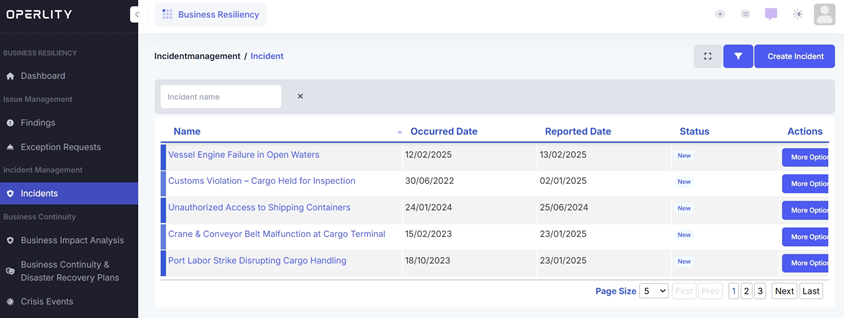
- Select "Incidents" under the Incident Management section from the left-hand menu.
- Here, users can view all incidents recorded in the system, along with details such as status, occurrence date, and reported date.
Example:
A maritime logistics company faces various operational risks. A recent incident of unauthorized access to shipping containers was reported, requiring immediate investigation and security reinforcements. The security team navigates to the Incident Management module to document the issue.
2. Creating a New Incident
To report a new incident:
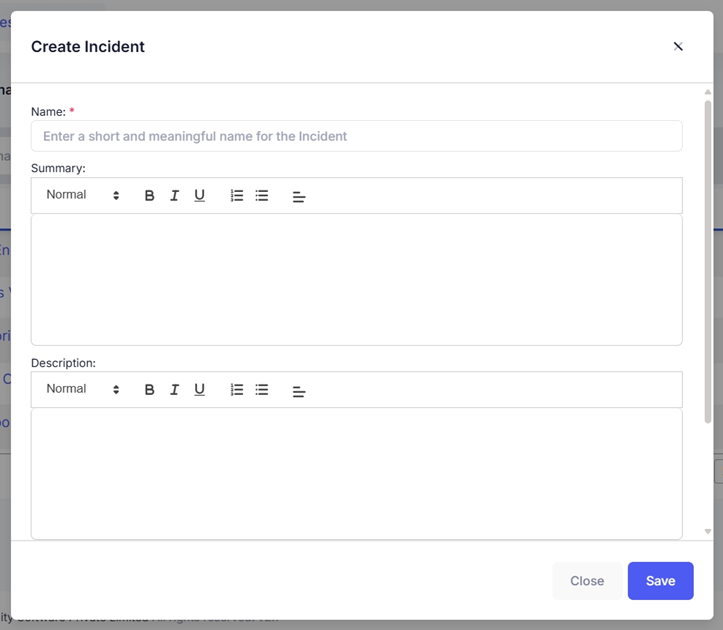
- Click on "Create Incident" at the top right corner.
- Fill in the required details:
- Incident Name – A clear and concise title for the incident.
- Summary – A brief overview of what happened.
- Description – A detailed explanation, including:
- Click Save to log the incident into the system.
Example:
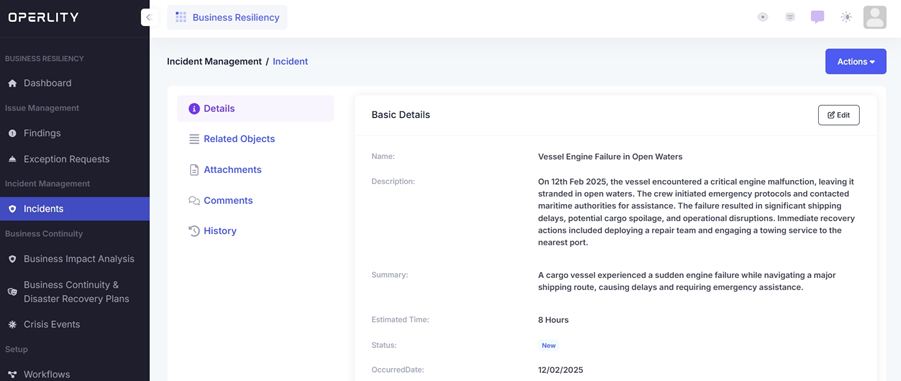
A cargo vessel experienced an engine failure in the middle of its journey, delaying shipments and requiring emergency assistance. The operations team logs the incident as:
- Incident Name: Vessel Engine Failure in Open Waters
- Summary: The vessel suffered a mechanical malfunction, leaving it stranded.
- Description: On Feb 12, 2025, while en route to a major port, the ship’s engine stopped functioning, affecting cargo delivery schedules. The crew activated emergency protocols, and maritime authorities were informed. The issue caused delays, operational disruptions, and financial impact due to late delivery penalties.
3. Reviewing and Managing Incidents
Once an incident is created, users can:
- View all relevant details such as occurrence date, status, estimated resolution time, and affected business units.
- Map related objects such as impacted processes, affected third parties, or associated risks.
- Attach supporting evidence like security footage, compliance reports, or audit logs.
- Use the comments section to document internal discussions, assign tasks, and track resolution progress.
Example:
After logging the unauthorized access to shipping containers, the compliance team:
- Maps related objects – Links the incident to the "Third-Party Vendor Security Compliance" process.
- Attaches supporting documents – Uploads a Vulnerability Assessment Report and CCTV footage from the affected area.
- Tracks resolution progress – Assigns investigation tasks to the security team and updates comments with findings.
By following this structured process, organizations can ensure a documented and efficient approach to incident tracking, leading to faster resolution times, improved compliance, and risk mitigation.
Was this article helpful?
That’s Great!
Thank you for your feedback
Sorry! We couldn't be helpful
Thank you for your feedback
Feedback sent
We appreciate your effort and will try to fix the article