1. Navigating the Crisis Events Module
Go to the Business Resiliency Module.
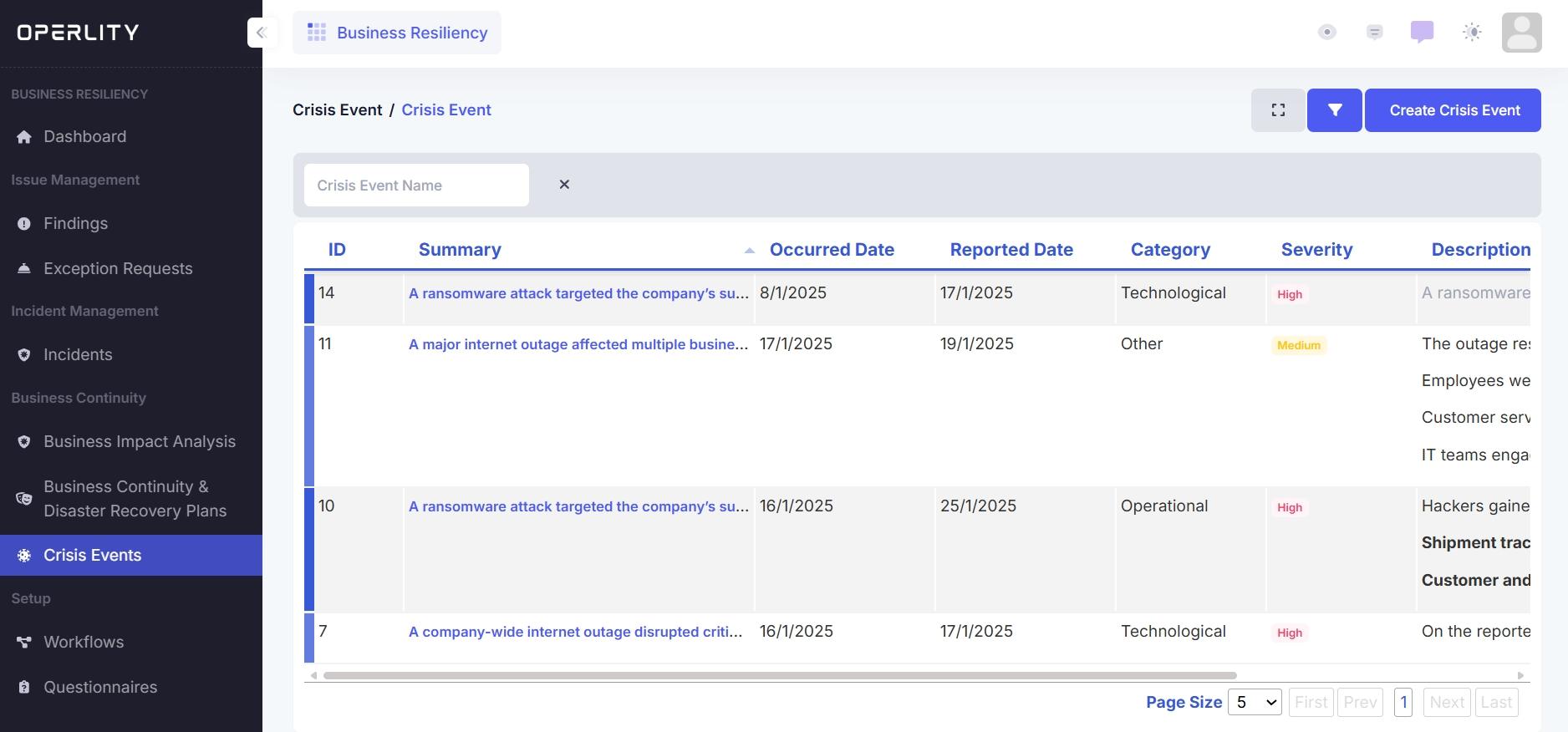
Click on Crisis Events from the left-hand menu, where you will find a list of all crisis events recorded in the system.
Example: If there was a ransomware attack on supply chain vendors, it will appear as a crisis event in the system.
2. Creating a New Crisis Event
Click the "Create Crisis Event" button at the top right corner.
Fill in the following details:
- Summary (Brief description of the event)
- Description (Detailed explanation of the event and its impact)
- Occurred Date (When the crisis started)
- Reported Date (When it was logged in the system)
- Crisis Category (e.g., Technological, Operational, Financial)
- Severity (Low, Medium, High)
- Notify Users (Checkbox to notify impacted stakeholders)
Click Save to create the event.
Example: If an internet outage disrupts business operations, log it under crisis events and categorize it under Technological Risk with Medium Severity.
3. Identifying and activating a BC/DR Plan
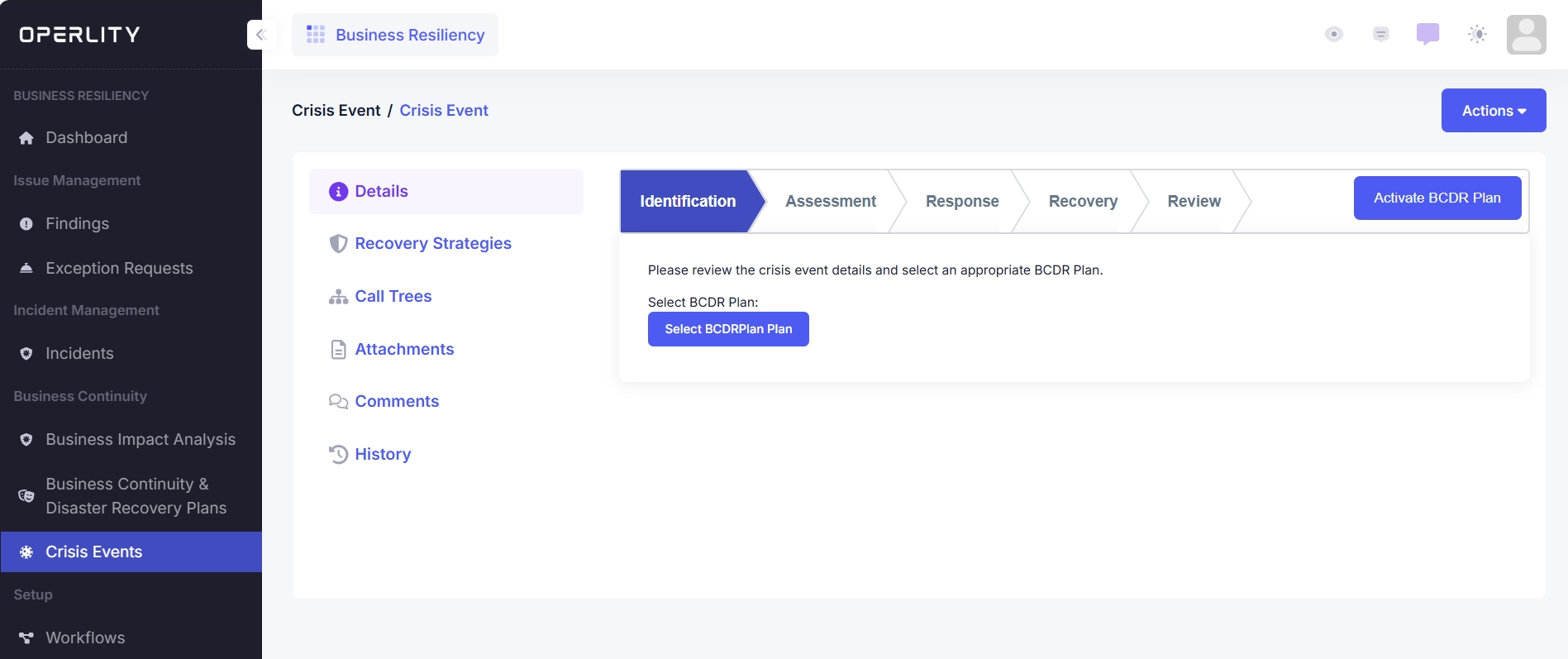
Once the event is created, the Crisis Event Workflow starts.
- In the Identification Stage, click "Select BCDR Plan" to associate a Business Continuity and Disaster Recovery (BCDR) Plan with the crisis.
- Click "Activate BCDR Plan" to trigger predefined recovery strategies.
Once activated:
- Notifications are sent to all mapped contacts responsible for executing the plan.
- Assigned Recovery Strategies will appear under the Recovery Strategies Tab.
Example: If a ransomware attack occurs, you can activate a Disaster Recovery Plan that includes:
- Isolating affected systems
- Engaging cybersecurity teams
- Notifying stakeholders
4. Conducting a Crisis Assessment
After execution, the next stage is Assessment, where you must document:
- Estimated Recovery Time (In hours)
- Estimated Financial Loss (Approximate impact)
- Risk of Delayed Recovery (Low, Medium, High)
- Assessment Notes (Additional context)
Click Save Assessment to proceed.
Example: If a supply chain disruption is estimated to take 48 hours to recover, document this with an estimated loss of $100,000.
5. Response Execution
In this stage, the response team documents:
- Actions Taken (Steps implemented to mitigate the crisis)
- Impact on Operations (Extent of disruption and affected departments)
- Response Actions (Additional measures needed)
Click Save Response to finalize this stage.
Example: During a cyber-attack, response actions may include:
- Revoking compromised credentials
- Deploying security patches
- Engaging forensic investigation teams
6. Monitoring the Recovery Stage
Once response actions are in place:
- Monitor recovery efforts to ensure proper implementation.
- View Loss Type, Duration of Downtime, and Assigned Tasks.
- Track progress in the Recovery Strategies tab.
Example: If an ERP system outage lasted 6 hours, document recovery timelines and mitigation steps.
7. Review and Continuous Improvement
Once recovery is complete:
- Document Lessons Learned
- Collect Feedback from involved stakeholders
- Identify Areas for Improvement
- Finalize the crisis event report by clicking "View Report".
Example: After an IT security breach, review findings and implement additional security controls to prevent recurrence.
Was this article helpful?
That’s Great!
Thank you for your feedback
Sorry! We couldn't be helpful
Thank you for your feedback
Feedback sent
We appreciate your effort and will try to fix the article