1. Navigating to your Admin Portal
To manage your organization's subscription and tenant settings, follow these steps:
- Log in to the Admin Portal.
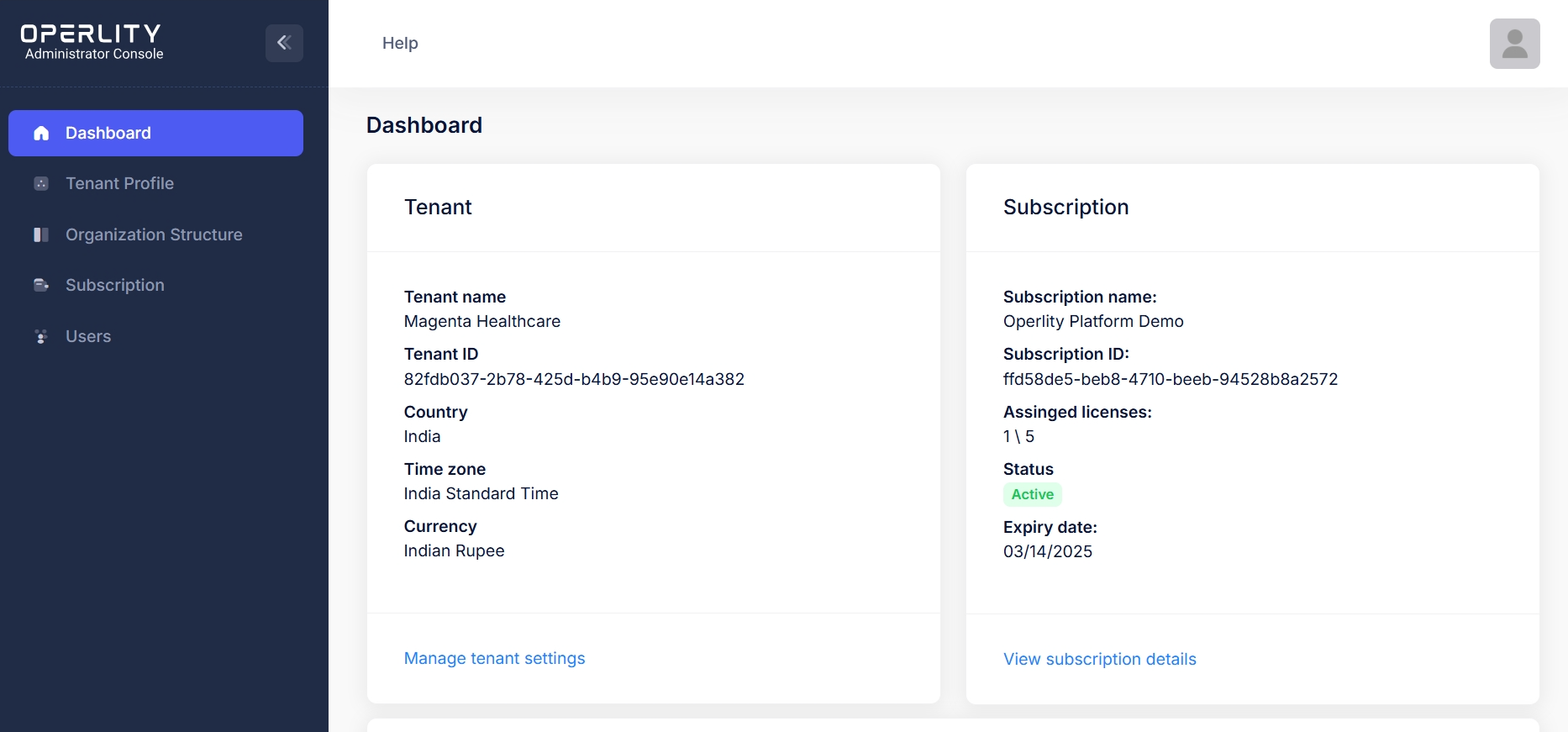
- Navigate to the Dashboard, where you can view your active tenant and subscription details.
Example: If your organization is Magenta Healthcare, you will see:
- Tenant Details: Tenant ID, Country, Time Zone, and Currency.
- Subscription Details: Subscription Name, Subscription ID, and License Information.
This section provides a quick overview of your organization's current subscription status and tenant configuration.
2. Adding a New User
To add a new user to the system:
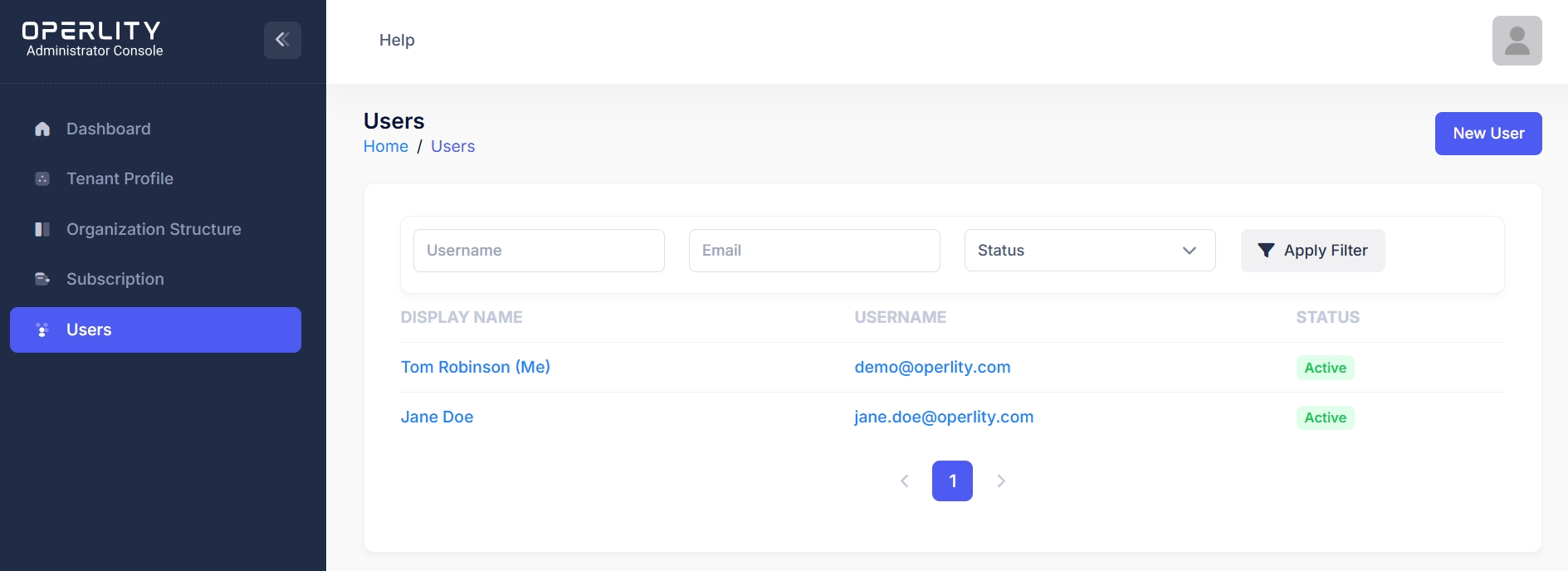
- Click on Users in the left-hand menu to view the list of active users.
- Click on New Userand enter the following details:
- Email (Username): The user’s official email ID.
- First Name: The user's first name.
- Last Name: The user's last name.
- Password: Set an initial password for the user.
- Confirm Password: Re-enter the password for confirmation.
- Click Submit to create the user.
Example: If you are adding John Doe as a new Risk Manager, enter john.doe@operlity.com as the email, set a password, and click Submit.
3. Managing Users within the Subscription
After adding a user, you can assign roles and licenses:
- Click on a user from the Users list to manage their settings.
- Click on manage role and select all the system and application roles for the user (e.g., Administrator, Auditor, Compliance Manager)
- Click on manage license and select the Licenses you want the user to manage (Manage access to specific GRCHub products and modules)
- Click Save Changes to update the user's permissions.
Example: If Jane Doe is an Auditor, you can assign her audit-related roles and licenses, while restricting access to administrative settings.

Was this article helpful?
That’s Great!
Thank you for your feedback
Sorry! We couldn't be helpful
Thank you for your feedback
Feedback sent
We appreciate your effort and will try to fix the article